Text Recognition Example
Introduction
- Text Detection: Find the areas with text in the input image.
- Text Recognition: Understand the words in the image, usually from the images of text areas cut out from the text boxes detected.
Usage
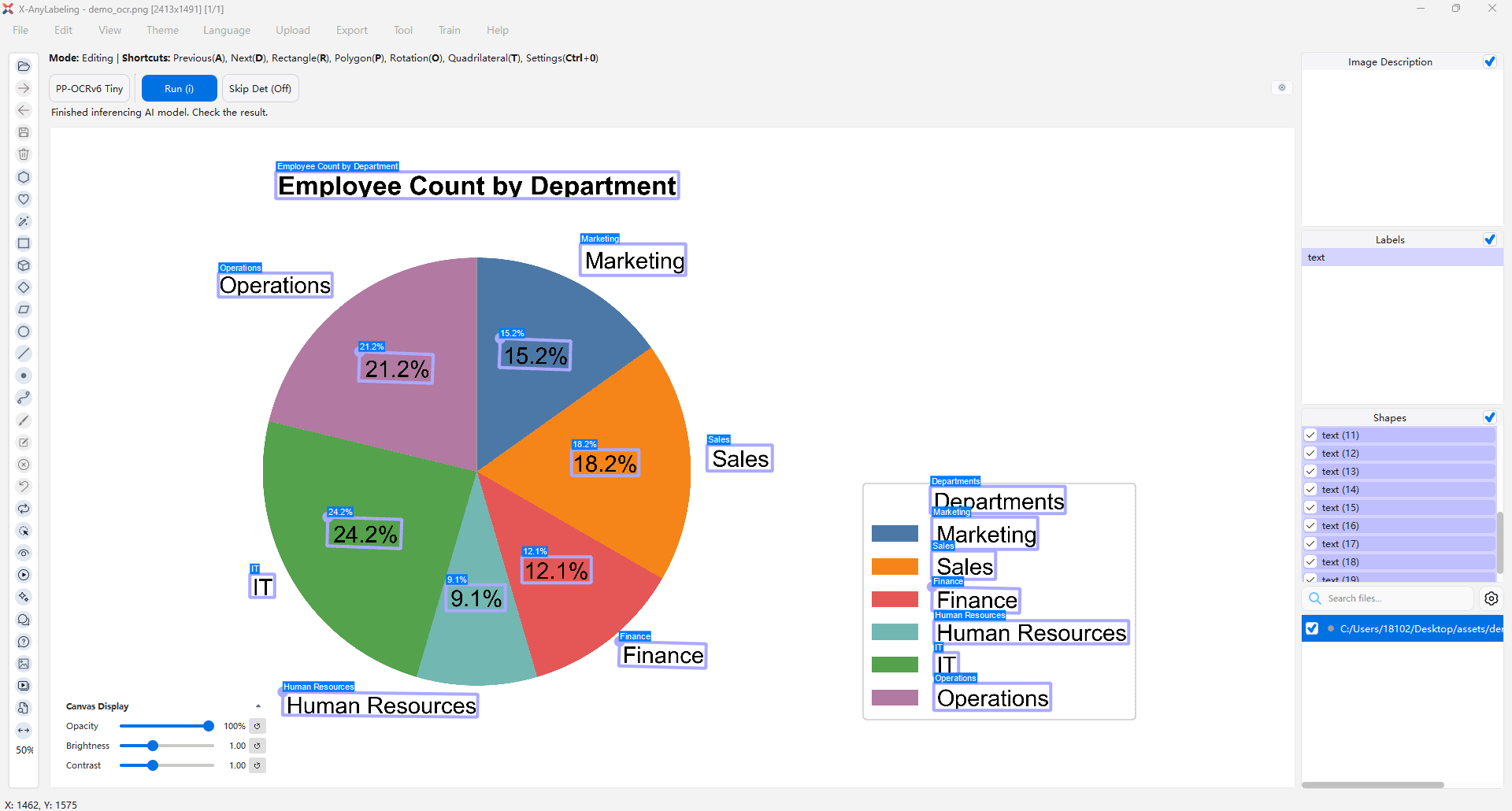
Currently, X-AnyLabeling supports both manual and automatic annotation of the PP-OCR dataset.
- Manual Annotation Modes
The following modes are available:
- rectangle: For drawing rectangle shape around text regions.
- rotation: For annotating text regions with a rotation shape.
- quadrilateral: For four-point (quad) annotation of text regions.
- Automatic Annotation Mode
For automatic annotation, the tool is integrated with models from PaddleOCR. Users can select the appropriate model based on their needs or deploy custom models for assisted inference.
Here's how to proceed with automatic annotation:
- Load the image or video file.
- Load the relevant PPOCR model.
- Click to run the annotation process.
Partial re-recognition uses existing rectangles, rotations, or quadrilaterals as text regions. Select the shapes, enable Skip Det (On), and run inference. If detection is not skipped, the new detection results may replace the existing shapes.
In batch mode, Skip Det (On) loads existing JSON annotations as text regions, so recognition can be rerun without selecting shapes in every image.
When annotating PPOCR data, the label field values can be ignored; instead, you should focus on the description field.
- To hide the text labels, you can use the shortcut
Ctrl+L. - To modify the
descriptionfield, you can useCtrl+Eto open the label manager and make corrections in the section of the pop-up dialog.
Press Ctrl+Shift+C to select text regions sequentially. You can also use Select/Unselect in the right panel to select or clear all shapes.
Export
For instructions on exporting PP-OCR Rec annotations, please consult the user guide available:
The exported annotations can be directly used for the training of PP-OCR detection and recognition models.