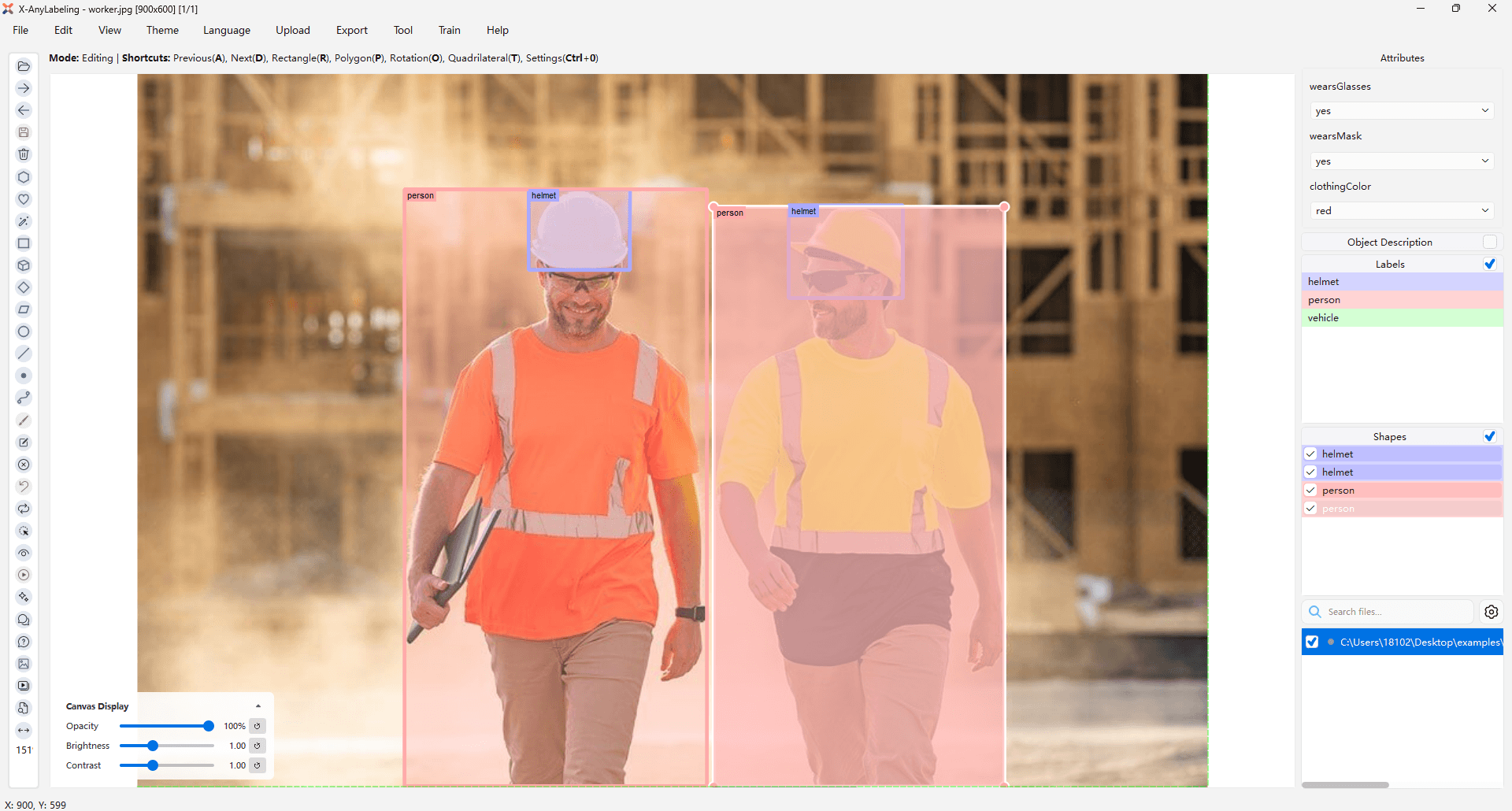
Shape-level Classification Example
Multi-task Classification
Introduction
Multi-task Classification involves training a model to perform multiple classification tasks simultaneously. For example, a model could be trained to classify both the type of person and vehicle attributes in a single image.
Usage
Step 0: Preparation
Prepare an attributes file such as attributes.json:
{
"vehicle": {
"bodyColor": [
"red",
"white",
"blue"
],
"vehicleType": [
"SUV",
"sedan",
"bus",
"truck"
]
},
"person": {
"wearsGlasses": ["yes", "no"],
"wearsMask": ["yes", "no"],
"clothingColor": [
"red",
"green",
"blue"
]
},
"__widget_types__": {
"vehicle": {
"bodyColor": "radiobutton",
"vehicleType": "combobox"
},
"person": {
"wearsGlasses": "radiobutton",
"wearsMask": "radiobutton",
"clothingColor": "combobox"
}
}
}
Widget type configuration
You can specify the widget type for each attribute using the __widget_types__ section:
"radiobutton": Single-click selection, ideal for yes/no or few options"group_id": Dropdown selection containing thegroup_ids of all objects, if any"lineedit": Free-form text input"combobox": Dropdown selection, suitable for many options (default)
If __widget_types__ is not specified, all attributes default to combobox.
Example of group_id and lineedit attributes:
{
"vehicle": {
"occluded_by": [],
"occluded_by_string": ""
},
"__widget_types__": {
"vehicle": {
"occluded_by": "group_id",
"occluded_by_string": "lineedit"
}
}
}
Step 1: Run the Application
python anylabeling/app.py
Step 2: Upload the Configuration File
Click on Upload -> Upload Attributes File in the top menu bar and select the prepared configuration file to upload.
Use Loop Select Shapes (Ctrl+Shift+C) to select shapes sequentially while assigning attributes.
Attribute label color customization
You can customize the colors of attribute labels displayed on the canvas by configuring the .xanylabelingrc file in your user directory. Add or modify the following settings under the canvas section:
canvas:
attributes:
background_color: [33, 33, 33, 255] # Background color (RGBA)
border_color: [66, 66, 66, 255] # Border color (RGBA)
text_color: [33, 150, 243, 255] # Text color (RGBA)
Color values use RGBA format: [R, G, B, A], where each value ranges from 0-255.
For detailed output examples, refer to this file.
Multiclass & Multilabel Classification
As with image-level classification, shape-level annotations support multiclass and multilabel flags.
Usage
GUI Import (Recommended)
Step 0: Preparation
Prepare a flags file like label_flags.yaml. An example is shown below:
person:
- male
- female
helmet:
- white
- red
- blue
- yellow
- green
Step 1: Run the Application
python anylabeling/app.py
Step 2: Upload the Configuration File
Click on Upload -> Upload Label Flags File in the top menu bar and select the prepared configuration file to upload.
Command Line Loading
Option 1: Quick Start
python anylabeling/app.py --labels person,helmet --labelflags "{'person': ['male', 'female'], 'helmet': ['white', 'red', 'blue', 'yellow', 'green']}" --validatelabel exact
The labelflags key field supports regular expressions. For instance, you can use patterns like {person-\d+: [male, tall], "dog-\d+": [black, brown, white], .*: [occluded]}.
Option 2: Using a Configuration File
python anylabeling/app.py --labels labels.txt --labelflags label_flags.yaml --validatelabel exact
For detailed output examples, refer to this file.