Image Classifier
The Image Classifier provides three annotation modes:
| Mode | Target | Purpose |
|---|---|---|
| MultiClass | Whole image | Select one category per image |
| MultiLabel | Whole image | Select multiple categories per image |
| MultiTask | Existing objects | Assign multiple attributes to each object |
Getting Started
Load an image directory in the main window, then click the Image Classifier icon or press Ctrl+3 (Windows/Linux) / ⌘+3 (macOS). Closing the classifier returns to the main window.

The left panel shows the image and its annotation status. The right panel provides mode selection, annotation controls, and image navigation. Pending, Passed, and Failed are synchronized with the main window's review status.
Image-level Classification
Configure Categories
In MultiClass or MultiLabel mode, use the category toolbar's add button to enter categories, one per line, or import a text file. Category search is case-insensitive; separate multiple keywords with spaces. Searching does not change existing selections.
Annotate and Manage Categories
Choose MultiClass or MultiLabel and select categories on the right. MultiClass allows one category per image; MultiLabel allows multiple categories. Switching from MultiLabel to MultiClass does not clean up other images automatically, so review them individually.
The category toolbar also provides add, delete, rename, and statistics actions. Deleting or renaming categories updates related annotations, so confirm the operation before proceeding. You can also run a classification model in the main window and review its predictions in the classifier; see the image-level example.
Object-level MultiTask
Prepare Objects and Attributes
Annotate or load objects in the main window, select MultiTask, and use the upload icon beside the object selector to load an attributes JSON file. Configuration keys must match object labels. For example:
{
  "vehicle": {
    "bodyColor": ["red", "white", "blue"],
    "vehicleType": ["SUV", "sedan", "truck"]
  }
}
Use __widget_types__ to configure dropdowns, radio buttons, text inputs, or group_id selectors. See the shape-level example for the full format. The loaded configuration is also available in the main window.
Select Objects and Edit Attributes
Select an object from the dropdown or click it in the preview to edit its attributes. Select All objects to view the whole image. Use the previous/next object buttons or Shift+A / Shift+D to navigate. Double-click an object or select it from the dropdown to focus it.
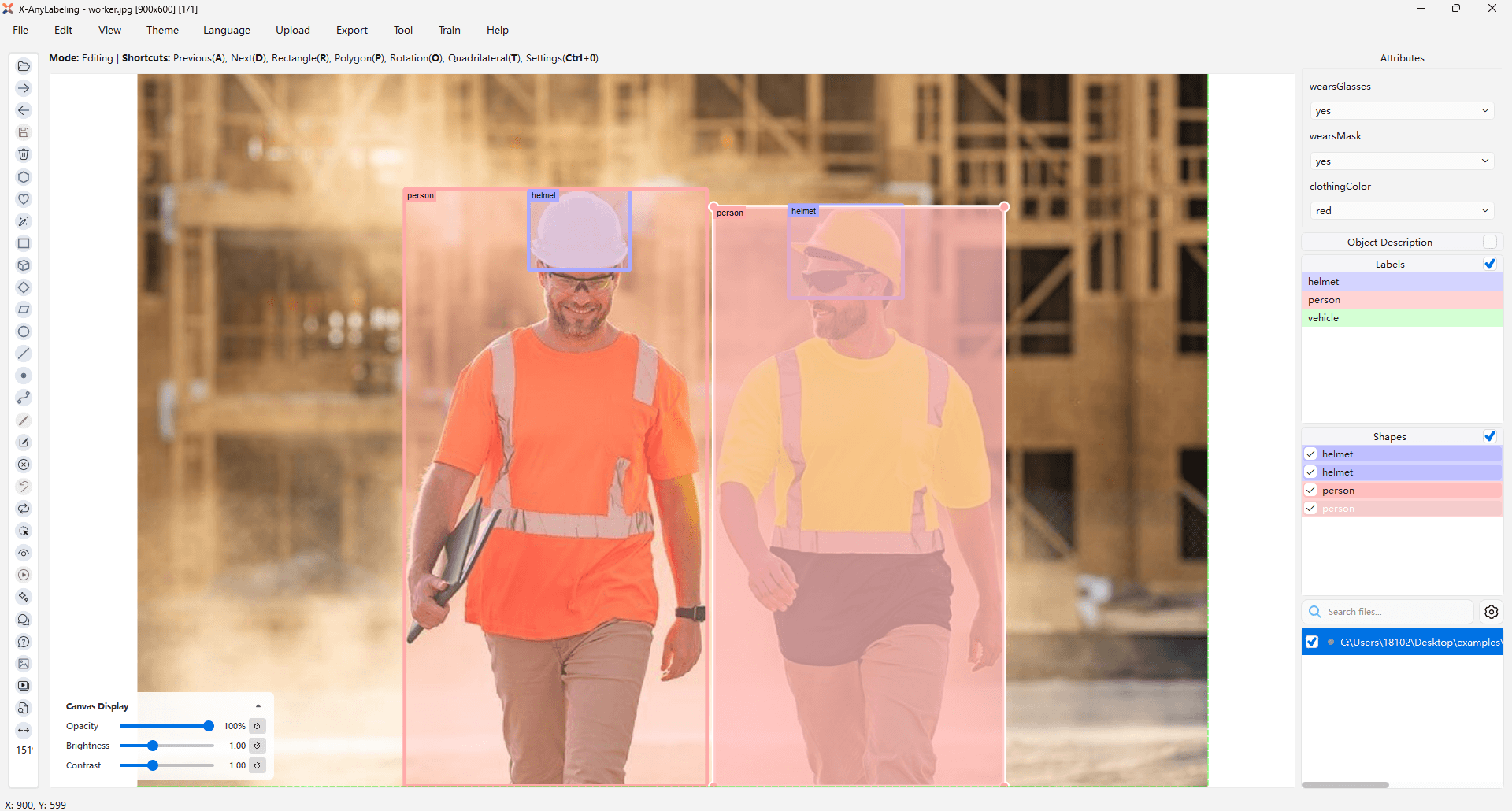
Preview controls show labels, mask the background, and fit the image to the window or width. Use the mouse wheel to zoom and drag to pan. Fit shortcuts follow the main window's configuration and default to Ctrl+F and Ctrl+Shift+F.
AI-assisted Labeling
Configure a Model
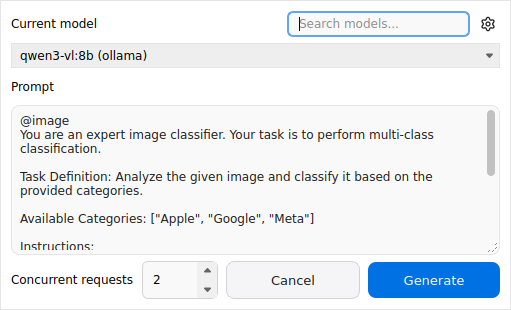
Configure a vision-language model in Chatbot. The batch AI panel lets you search and select a model, edit the prompt, and set concurrency. The settings icon opens Chatbot settings, and changing the model also updates the Chatbot selection.
Process the Current Image
- MultiClass / MultiLabel: Click the category toolbar's AI icon and use or edit the default prompt to classify the current image.
- MultiTask: After loading an attributes configuration, use the AI icon to process the selected object. Select All objects to process all configured objects in the current image.
MultiTask inference uses an object crop, its category, and attribute configuration. Choice results must match configured options; uncertain values can remain unset, and group_id is not inferred. In batch prompts, @object and @attributes are replaced with each object's category and attribute configuration.
Run a Batch
Click AutoRun and select an inclusive image range, which defaults to the current image through the last image. Confirm the model and prompt in the AI panel, set 1–8 concurrent requests (default 2), and click Generate. MultiClass / MultiLabel processes whole images; MultiTask processes configured objects in the selected images.
Confirm the overwrite warning before generation, or select Don't show again. The progress dialog supports cancellation and reports completed, skipped, and failed items; completed results are retained. After a MultiTask batch with successful results, the first object in the current image is selected. Single-object inference keeps the current selection. Review AI results before use.
Saving and Exporting
Image-level classifications are stored in the annotation file's top-level flags; MultiTask values are stored in each object's shapes[].attributes. Changes to the current image follow the main window's autosave setting. If autosave is disabled, return to the main window and save manually.
Batch results for other images are written directly to their annotation files. If a file changes during processing, its result is skipped and reported as a failure. MultiTask also skips images without annotation files and objects without matching attributes.
Export supports MultiClass only. It reads saved annotations and copies images into classified/<category>/ without changing the originals. Save current changes before exporting.
Keyboard Shortcuts
| Shortcut | Action |
|---|---|
A / D | Previous / next image |
Ctrl+A / Ctrl+D | Previous / next unlabeled image (image-level classification) |
0–9 | Select or deselect the corresponding image category |
Shift+A / Shift+D | Previous / next object (MultiTask) |
Ctrl+F / Ctrl+Shift+F | Fit window / fit width (MultiTask, default configuration) |
On macOS, use the corresponding ⌘ combinations. See the User Guide for more on the annotation format.